
If you create YouTube videos on a regular basis, you already know the routine. Open the recording software. Open the notes. Open the browser tabs. Open the editing software. Open the folder you forgot to open the first time. Then act like this was all part of a smooth professional workflow.
That is exactly why I ended up loving the Razer Stream Controller.
At first glance, it looks like one of those devices built strictly for livestreamers with flashy buttons and dramatic desk lighting. But once I started using it in my everyday workflow, it quickly became clear that it is useful for much more than that.
For me, this thing has become a practical shortcut tool for recording YouTube videos, launching desktop apps, and making parts of video editing easier.
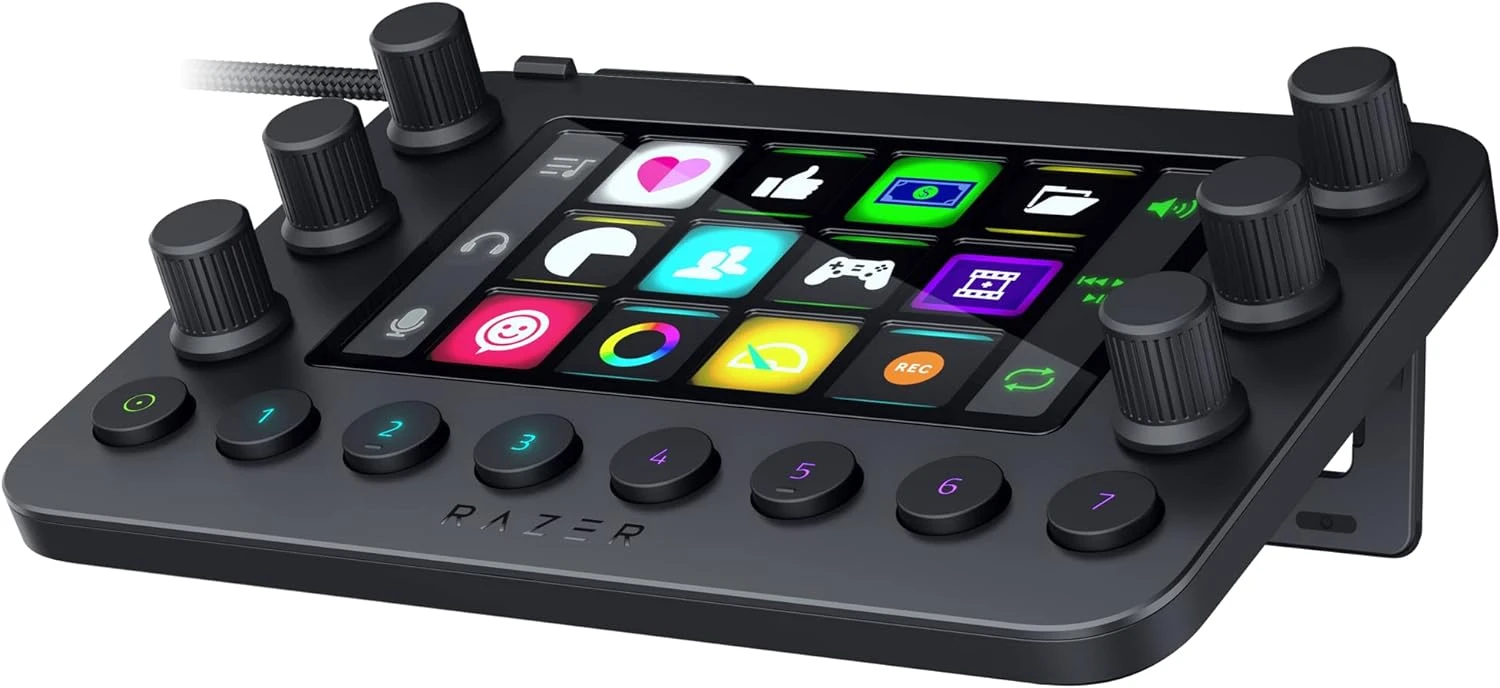
- Fast app launching: get into recording mode quicker.
- Editing shortcuts: keep repeated actions close at hand.
- Less friction: stop digging through folders and menus every session.
What the Razer Stream Controller Actually Helps With
The name makes it sound like this device only belongs in a streaming setup, but I think that undersells it. At its core, it is a customizable control surface with buttons, dials, and shortcuts you can map to tasks you repeat all the time.
That means it can launch apps, open folders, trigger commands, manage audio, and handle the little workflow steps that normally eat up time.
None of that sounds glamorous, but neither does spending ten minutes every day hunting down the same project folder like it joined witness protection.
Why I Like It for YouTube Recording
One of the biggest reasons I like the Razer Stream Controller is that it helps me get into recording mode faster. Instead of manually opening the same programs and tools every time I want to create a video, I can put those actions right on the controller.
That may sound simple, because it is. But simple is the whole point. Less setup means less friction, and less friction makes it easier to stay consistent.
- Launch recording software quickly
- Open notes, scripts, or browser tabs
- Pull up project folders or thumbnail assets
- Get to the tools you use every single time
It Is Also Great for Launching Desktop Apps
This is one of my favorite practical uses for it.
If you use the same apps over and over, the controller becomes a convenient launcher. Press a button and open your editor. Press another and open a project folder. Press another and bring up a tool you need every time you sit down to work.
It takes routine desktop tasks and puts them in one place, which is surprisingly helpful when you are juggling content creation, editing, graphics, uploads, and the other little things that come with running a channel or website.
Ways I Would Use the Buttons
- Open OBS or screen recording software
- Launch video editing software
- Open media folders and thumbnail assets
- Pull up browser tabs for scripts or uploads
- Access creator tools faster without digging through menus
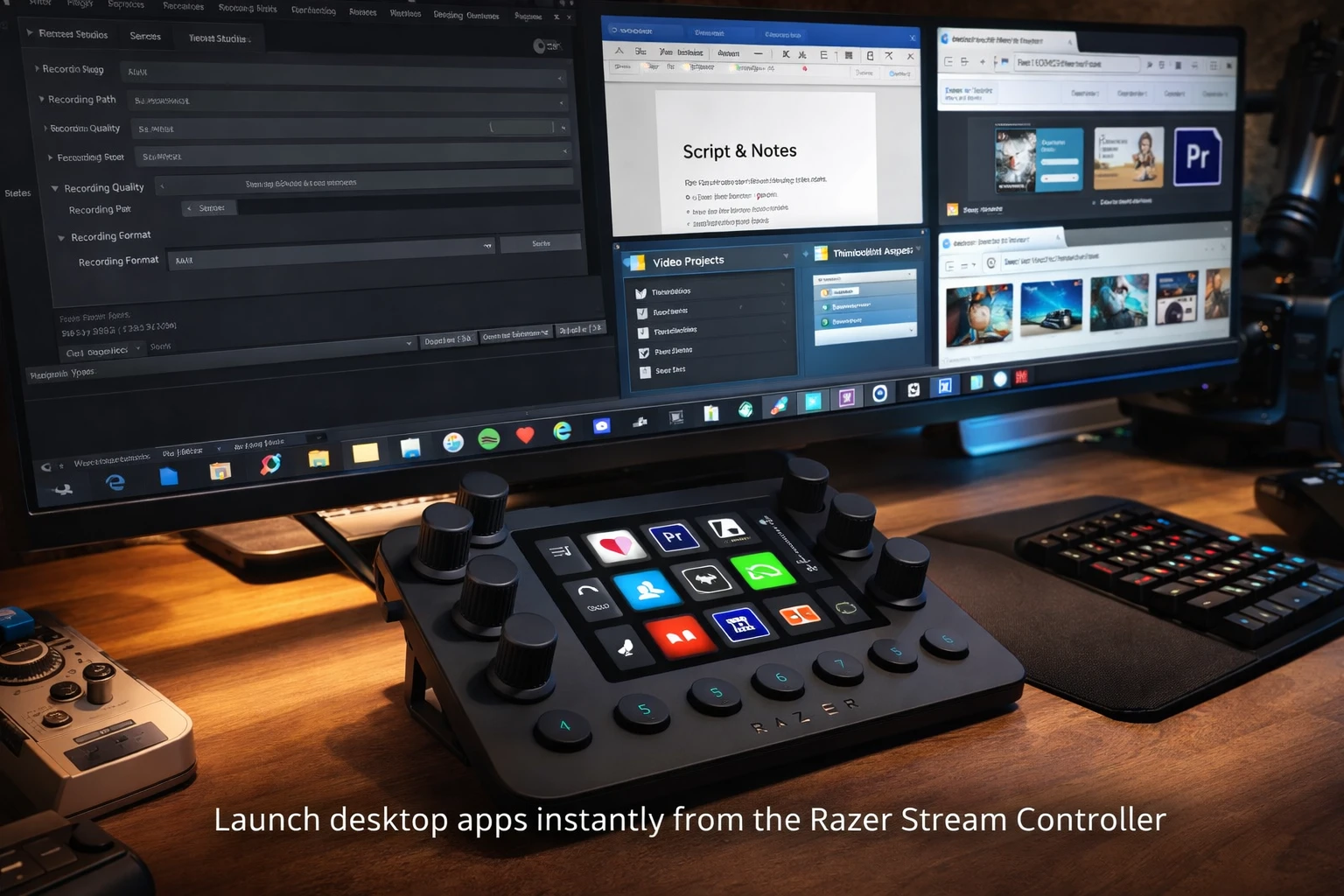
One button for repeated desktop tasks. Tiny shortcut. Big sanity upgrade.
Why It Helps With Video Editing Too
This is where I think the Razer Stream Controller becomes more than a neat desk accessory.
Editing involves a lot of repetition. Open the editor. Open the current project. Open the media folder. Move around the timeline. Trigger the same actions again and again. Somewhere in there, question all of your life choices for filming in 4K.
A controller like this can make that process feel smoother by keeping common actions close at hand. Even when it is only shaving off a few clicks at a time, that adds up fast when you edit often.
- Open editing projects faster
- Access media folders without extra digging
- Map repeated shortcuts to buttons
- Stay focused instead of bouncing around the desktop
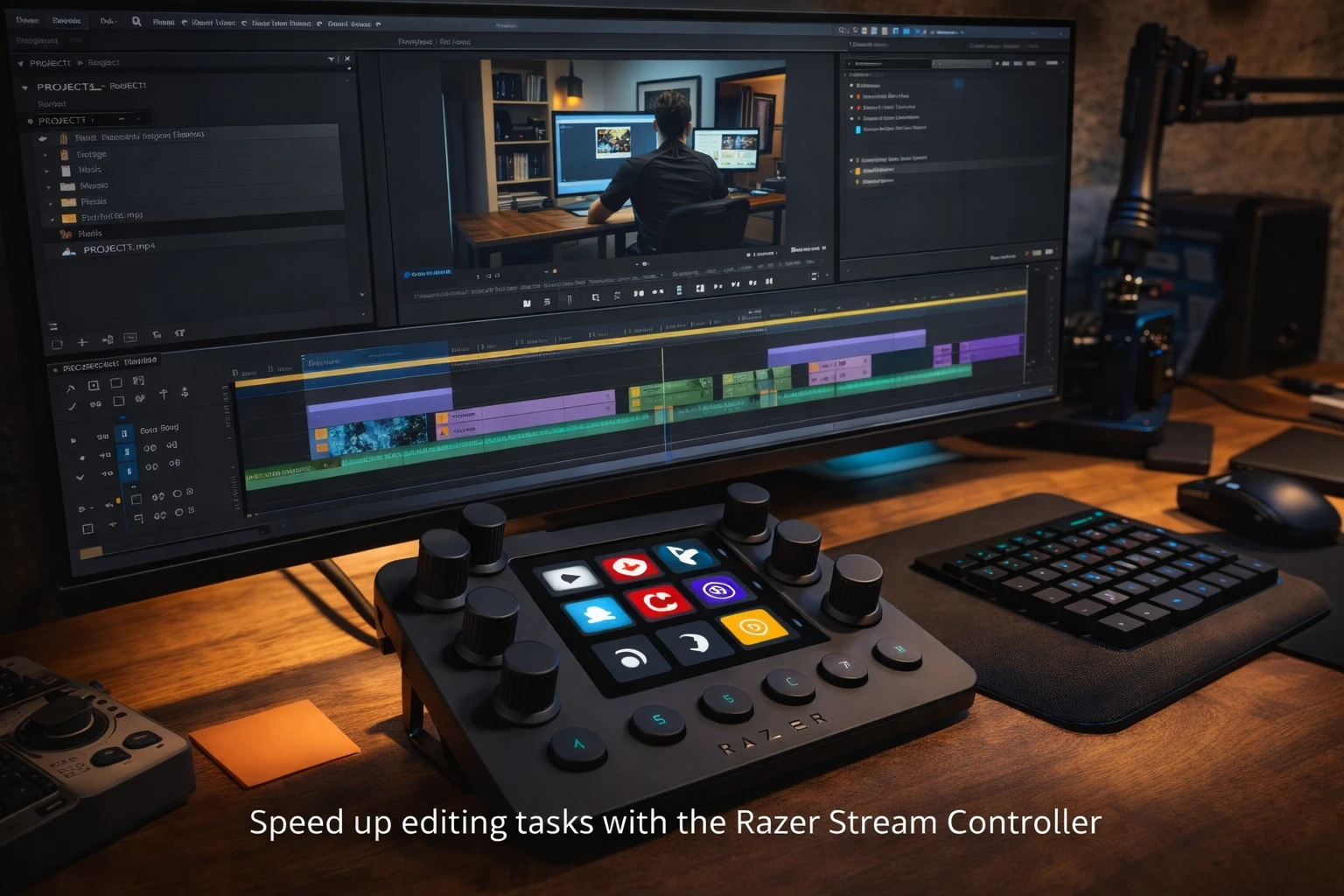
Repeated editing actions are exactly where shortcut controllers start earning desk space.
The Best Part Is That It Reduces Friction
That is the biggest benefit for me.
Yes, it saves time. Yes, it can make your setup feel more efficient. Yes, it looks slick on the desk. But the real value is that it removes small annoyances from the process.
When the tools you need are already mapped out and easy to reach, it becomes easier to sit down and start. For creators, that matters. Sometimes the hardest part is not editing or recording. It is simply getting moving.
Who I Think This Is Best For
I think the Razer Stream Controller makes the most sense for people who repeat the same desktop tasks over and over.
- YouTubers
- Video editors
- Streamers
- Podcasters
- Small business owners creating content
- Anyone who wants a cleaner workflow with fewer clicks
If you only create content once in a while, it may be overkill. But if recording, editing, and launching the same tools is part of your normal routine, it starts making more sense.
Final Thoughts
The Razer Stream Controller has been one of those tools that ended up being more useful than I expected. I like it because it helps me launch desktop apps faster, makes it easier to organize parts of my YouTube workflow, and gives me a smoother path into editing and recording.
It is easy to assume a product like this is only for streamers, but I do not think that is true. For creators, it can be a practical workflow tool that saves time, reduces friction, and makes the whole process feel less scattered.
And let’s be honest, anything that helps me spend less time clicking random windows and more time actually creating is a win.
Thinking About Getting One?
If the Razer Stream Controller looks like something your setup needs, take a look at our creator desk setup picks. It is a solid place to find workflow-friendly gear without digging through a mountain of random listings.
If you enjoyed this post, give it a thumbs up.
0FAQ: Razer Stream Controller for Content Creators
Is the Razer Stream Controller only for livestreaming?
No. It is also useful for YouTube creators, editors, podcasters, and anyone who wants faster access to apps, folders, and repeated workflow actions.
Can it really help with desktop app launching?
Yes. That is one of the most practical everyday uses. It is great for opening the same apps and folders you use all the time.
Is it helpful for editing videos?
It can be. If you edit regularly, quick access to shortcuts, folders, and repeated tasks can make the workflow smoother.
What is the biggest benefit?
Reduced friction. It makes it easier to start working without wasting time on setup and repeated clicks.